
Speed Up Presentation Workflow: Customize the Quick Access Toolbar
Learning how to customize the Quick Access Toolbar in PowerPoint 365 is the single fastest way to transform your slide design speed. If you constantly waste time clicking through ribbon tabs just to align text boxes, insert basic shapes, or bring elements to the front, building a tailored workflow toolbar changes everything. In this complete guide, you will learn how to configure your PowerPoint 365 Quick Access Toolbar (QAT) with essential corporate production tools so you can execute clean, professional slide layouts in seconds.
Watch the full 5-minute practical video walkthrough below:
Why You Should Customize the Quick Access Toolbar in PowerPoint 365
Default ribbon menus in PowerPoint require multiple clicks to perform basic slide alignment tasks. By setting up a dedicated Quick Access Toolbar, you bring your most-used tools into a single, permanent visual row.
- Eliminate Menu Switching: Access shape creation, text positioning, and distribution controls without jumping between the Insert, Home, and Format tabs.
- Accelerate Repetitive Tasks: Aligning complex graphic elements becomes a one-click action instead of a multi-step search.
- Ensure Consistent Layouts: Having visual alignment buttons constantly visible encourages you to keep margins and spacing consistent across every slide deck.
Step-by-Step Guide: How to Customize the Quick Access Toolbar
Follow these simple configuration steps to set up a high-efficiency layout:
Opening PowerPoint QAT Settings
- Click the small drop-down arrow located at the top-left corner of your PowerPoint window.
- Select More Commands… to open the main Options menu directly on the QAT tab.
- Under the Choose commands from: drop-down menu, switch from Popular Commands to All Commands to view every available PowerPoint tool.
Adding and Removing Production Tools
- Select default or unused icons from the right column and click Remove.
- Browse through the left panel, select your required design commands, and click Add >>.
- Use the Up and Down arrow buttons to arrange your tools in order of frequency.
Essential Commands for Your Customize the Quick Access Toolbar Setup
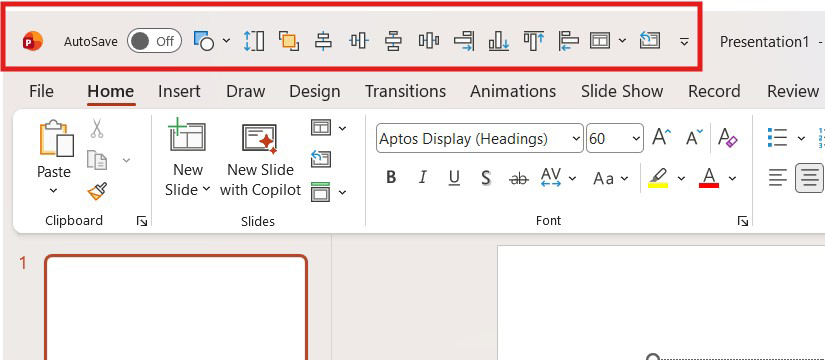
To speed up PowerPoint workflow efficiency for corporate presentation design, add these high-impact tools directly to your toolbar:
- Object Alignment:
Align Left,Align Center,Align Middle,Align Top,Align Bottom - Element Distribution:
Distribute Horizontally,Distribute Vertically - Layering & Objects:
Bring to Front,Send to Back,Insert Shapes - Slide Structure:
Layout,Reset Slide
Putting Your Quick Access Toolbar into Action
Once your custom toolbar is ready, creating clean slide layouts takes a fraction of the time. Whether you are building a title card with semi-transparent background overlays or structuring multi-column content blocks, keeping alignment tools one click away allows you to maintain clean visual hierarchy effortless and fast.
For more PowerPoint turorials, check this Youtube Playlist
Master how to speed up PowerPoint workflow to get your jobs done faster. Find presentation jobs here.