
Transform Data with Copilot Business Storytelling
Presenting complex data to senior leadership requires converting raw spreadsheets into clear, actionable insights. With Copilot business storytelling, you can turn raw metrics into executive narrative presentations in seconds without building slides manually. In this step-by-step tutorial, you will learn how to deploy a single structured prompt inside Microsoft 365 Copilot to transform dense performance figures into a clean, 4-slide executive deck complete with key takeaways, visual container layouts, and meeting speaker notes.
Why Raw Metrics Fail in Executive Presentations
When reporting performance to stakeholders, pasting raw data tables or cluttered charts leads to decision fatigue. Executive leadership needs high-level narrative structure:
- Lack of Narrative Context: Numbers without a clear storyline force executives to guess what went wrong or where the business is growing.
- Overwhelming Detail: Presenting dozens of metrics at once dilutes the strategic priority.
- Missing Strategic Action: Data alone does not drive decisions; slides must pair insights with direct, actionable proposals.
The Master 4-Slide Executive Narrative Prompt Framework
To generate a structured presentation deck with Microsoft Copilot, copy and paste the multi-part prompt framework below:
Plaintext
• Goal: Turn raw business metrics into a concise 4-slide executive story.
• Input Data: [Insert key metrics, revenue changes, or KPI percentages]
• Target Audience: Board members, executive leadership, and stakeholders.
• Deck Structure:
   1. Slide 1: Executive Summary & Headline KPI Callout
   2. Slide 2: Key Performance Drivers & Revenue Insights
   3. Slide 3: Risk Factors & Operational Bottlenecks
   4. Slide 4: Strategic Action Plan & Implementation Roadmap
• Tone & Style: Executive, direct, minimal layout with navy and slate palette.
• Output Requirements: Include slide layout recommendations and speaker notes for each slide.
Step-by-Step Execution: Building Your Deck in Microsoft 365 Copilot
Follow these quick steps inside PowerPoint 365 to run your prompt:
- Open Microsoft Copilot: Launch PowerPoint 365 and click the Copilot icon on the home ribbon.
- Paste Your Structured Prompt: Input the 4-slide executive narrative prompt into the chat window along with your raw metrics.
- Review Narrative Flow: Check that Copilot organizes your input into distinct thematic slides (Summary, Drivers, Risks, Actions).
- Following this structured workflow guarantees every Microsoft 365 Copilot presentation you deliver remains concise, polished, and board-ready.
Speaker Notes in Copilot Business Storytelling
A key component of effective Copilot business storytelling is the automatic creation of meeting notes. Beyond generating visual slides, Copilot generates concise talking points and executive narrative cues directly in the speaker notes pane, keeping your verbal delivery aligned with your slide visuals.
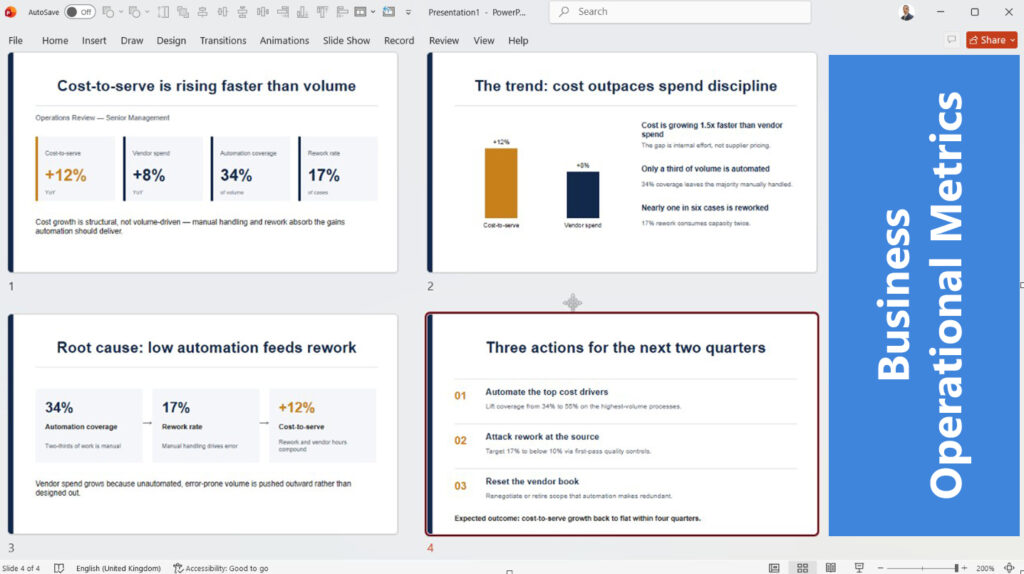
The Result: A Clean 4-Slide Executive Storyboard
By leveraging a structured prompt rather than vague commands, Microsoft 365 Copilot converts raw performance figures into a clear, executive-grade narrative deck. Mastering this rapid prompt workflow allows you to build board-ready presentations in minutes while ensuring every slide communicates maximum strategic value.
For more PowerPoint turorials, check this Youtube Playlist
And here you can search for Jobs for Presentation and PowerPoint designers