
Transforming AI Presentation Mistakes into Clean Corporate Layouts
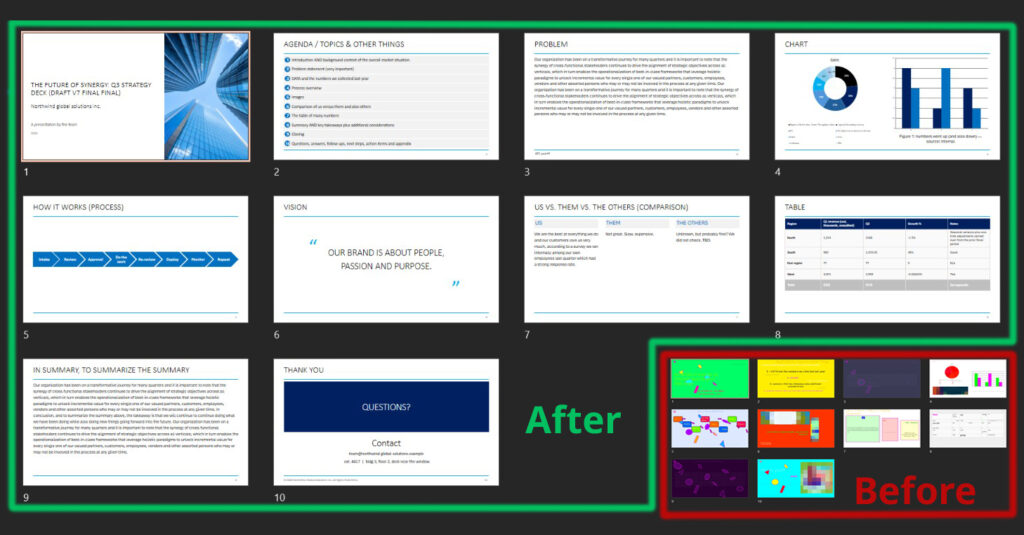
AI presentation tools can generate decks in seconds, but the output often suffers from poor alignment, cluttered shapes, and messy color contrast. If you are struggling with fixing ugly AI slides in PowerPoint, turning raw automated content into an executive-ready presentation does not have to take days. In this comprehensive step-by-step tutorial, you will discover how to execute a full before and after PowerPoint redesign—transforming a chaotic 10-slide AI deck into a clean, minimal corporate presentation in under 45 minutes.
Watch the complete, real-time redesign transformation video below:
The 5 Most Common AI Presentation Design Failures
When AI tools build presentation decks, they routinely rely on generic templates and decorative fluff rather than structural clarity. Before jumping into the redesign, here are the core flaws to spot and eliminate:
- Inconsistent Color Schemes: AI often applies random gradient fills or unformatted accent colors instead of adhering to standard corporate theme palettes.
- Overcrowded Text Blocks: Unstructured paragraphs make slides difficult for leadership to digest at a glance.
- Misaligned Elements: Text containers, icons, and shapes are frequently scattered without a strict grid alignment system.
- Inappropriate Stock Visuals: AI frequently inserts low-resolution or irrelevant decorative icons that distract from the main message.
- Lack of Visual Hierarchy: Slide titles, subtitles, and key performance indicators blend together without clear typographic contrast.
Step-by-Step PowerPoint Slide Transformation Framework
To execute a complete PowerPoint slide transformation under tight deadlines, follow this structured, 4-step workflow:
Step 1: Strip Content and Declutter
Remove decorative background shapes, dark overlays, and redundant stock graphics. Isolate the core text, data points, and headlines to reveal the underlying message.
Step 2: Establish Grid Spacing and Alignment
Set up strict margin boundaries and equal spacing columns. Group raw text lines into distinct visual containers to establish order and balance across the slide canvas.
Step 3: Standardize Typography and Contrast
Replace generic font choices with clean, modern corporate typography. Use strong visual contrast—such as bold headers paired with light body copy—to guide the viewer’s eye.
Step 4: Apply Theme Colors and Structural Containers
Map colors directly to PowerPoint’s internal theme settings. Place key metrics and key takeaways inside soft shape cards to separate information cleanly.
Core Rules for Corporate Presentation Design
When presenting to clients, executives, or stakeholders, minimalist design wins every time. Adhering to professional corporate presentation design standards ensures your slides communicate value instantly:
- Use Container Cards for Grouped Data: Group related metrics or bullet points into uniform cards rather than letting text float loosely.
- Maintain High Color Contrast: Ensure body text is instantly readable against background cards.
- Limit Accent Colors: Stick to one primary corporate tone and one subtle neutral background shade for consistent branding across all slides.
Fixing Ugly AI Slides in PowerPoint with Grid Alignment
One of the biggest breakthroughs during a slide makeover is leveraging precise grid alignment. When fixing ugly AI slides in PowerPoint, using built-in alignment tools—such as Align Center, Align Middle, and Distribute Horizontally—instantly converts messy AI shapes into neat, structured columns.
Real-Time Redesign Results: 10 Slides in 45 Minutes
By systematically applying these minimalist layout principles, a cluttered 10-slide deck generated by AI becomes an executive-grade business presentation. Mastering these speed-design workflows empowers you to produce clean, professional slide decks in minutes without relying on pre-made templates or third-party design plugins.
For more PowerPoint turorials, check this Youtube Playlist
And here you can search for Jobs for Presentation and PowerPoint designers