
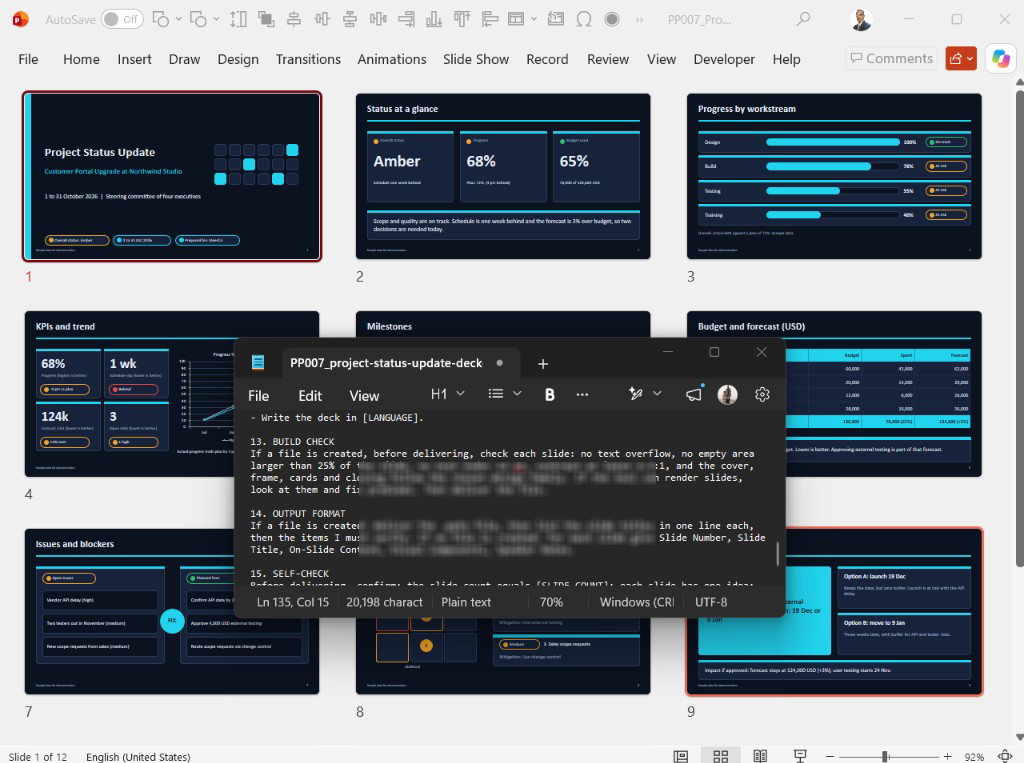
Project Status Update Deck Builder | AI PowerPoint Prompt
Original price was: $24.$19Current price is: $19.
Build an editable project status update deck from your project facts. The prompt is designed to build 10 slides with speaker notes in AI tools that can create files, with 24 looks to choose from, plus your own colors.
Description
Build a project status update deck from your own project facts
Every reporting period, project managers, team leads and consultants must turn progress, milestones, budget and risks into a clear project status update deck. Building the layout, charts and notes of an editable project status PowerPoint takes effort that is better spent checking your facts.
What this prompt is designed to do
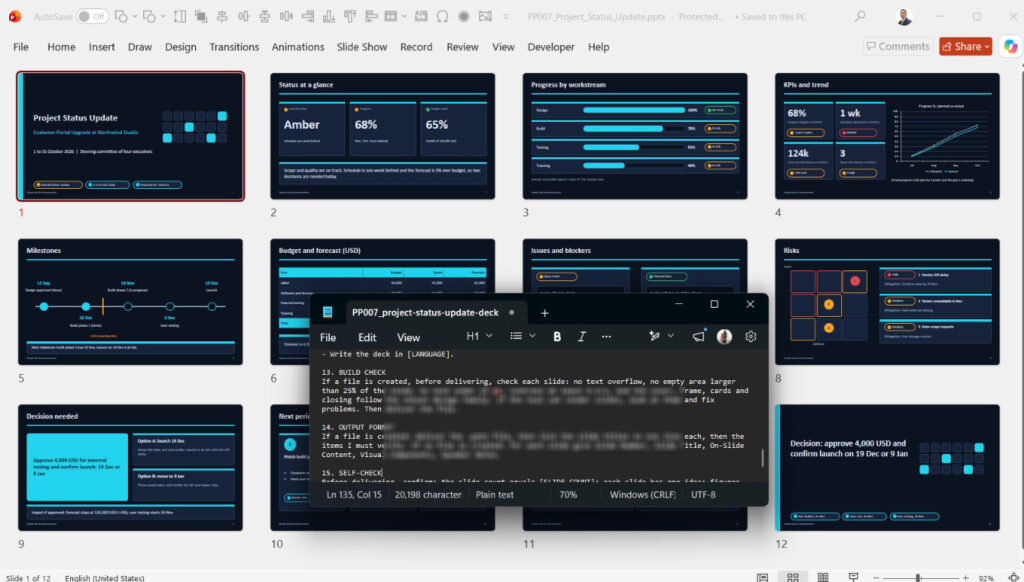
- Designed to build a project status update deck with status, progress, milestones, budget, issues and a decision slide.
- Designed to turn your project facts into a project progress report presentation with one idea per slide.
- Designed to show the status your data shows, with delays and cost overruns visible.
- Designed to add speaker notes to every slide.
- Designed to give you an editable project status PowerPoint with native charts and shapes you can change.
How the AI project status presentation prompt works in 3 steps
- Copy the prompt into a new chat in your AI tool.
- Run the demo, or add your own project data.
- Open the finished deck in PowerPoint, check every figure and edit it.
This AI project status presentation prompt is designed to ask nothing in demo mode. With your own data, it asks any missing questions once.
What you get: an editable project status PowerPoint deck
Why an editable project status PowerPoint helps
You can edit text, colors, charts and shapes yourself. The prompt is designed to build a 16:9 project status update deck of 10 slides by default (8 to 12 if you choose), with speaker notes on every slide. It is delivered as a prompt file (.txt) and a usage guide (PDF).
Design families and looks you can choose
The prompt contains 8 design families, 3 palettes each = 24 looks, plus your own colors. A look is a family (shapes, fonts, frame and layout) plus a palette (colors). The default look is Data Cockpit in Cyan Night.
The example images use fictional sample data and show the design looks only.
1. Classic Boardroom
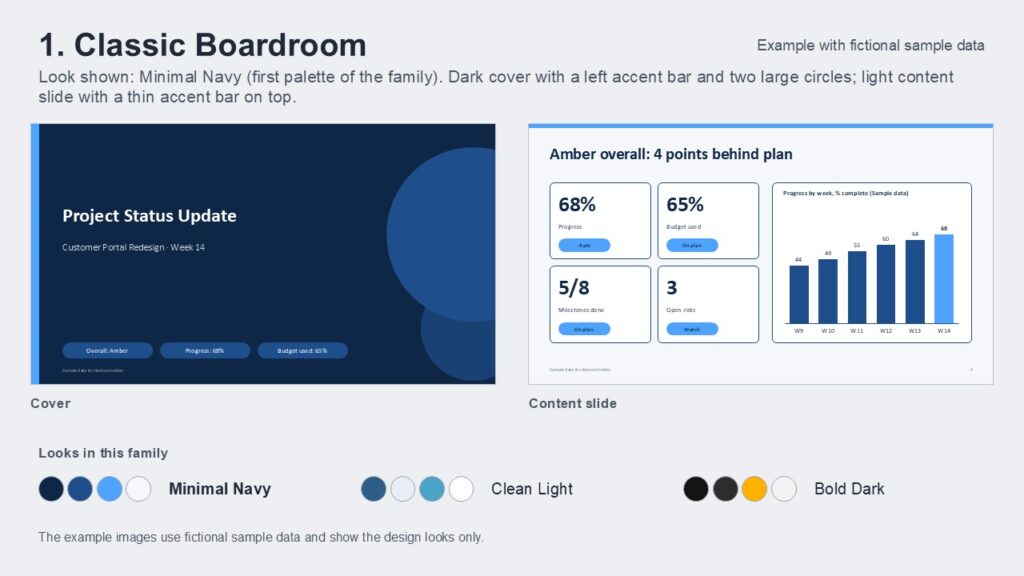
Dark cover with a left accent bar and two large circles, then light slides with a thin accent bar on top. White rounded cards and columns in the secondary color with one accent highlight.
Suits: a project status update deck for steering committees and sponsors who expect a familiar business look.
- Minimal Navy: navy and bright blue on light slides
- Clean Light: steel blue and sky blue on white slides
- Bold Dark: near-black and charcoal with amber-yellow accents; dark cover and closing, light content slides
2. Editorial Serif
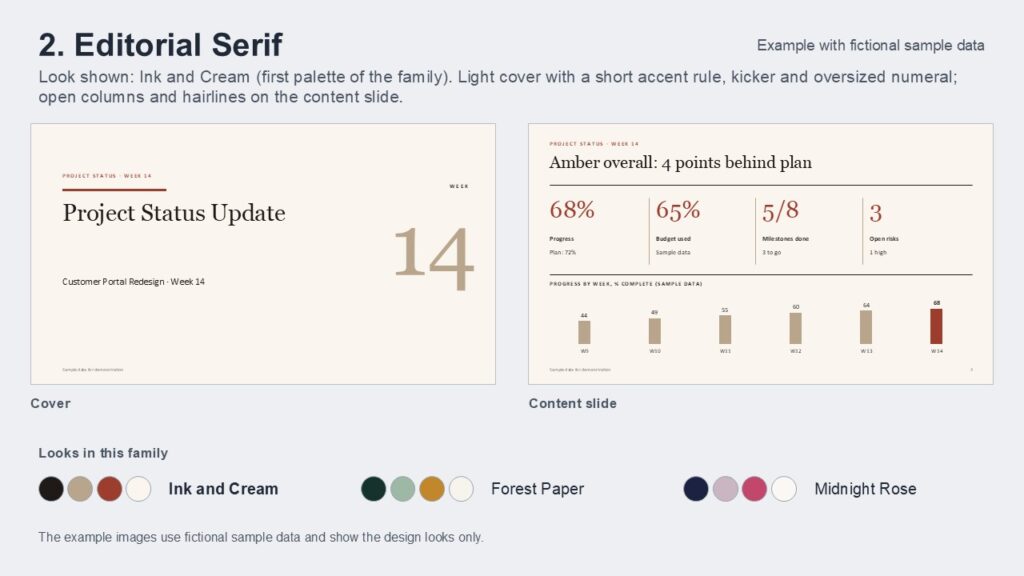
Light cover with a short accent rule, a small uppercase kicker and an oversized numeral, then slides with Georgia titles and hairlines. Open columns with large numerals replace filled cards.
Suits: a project progress report presentation for consultants and clients who prefer a calm, text-led layout.
- Ink and Cream: dark ink, tan and brick red on cream
- Forest Paper: deep green, sage and golden amber on paper
- Midnight Rose: midnight blue, dusty mauve and rose pink on blush white
3. Split Panel
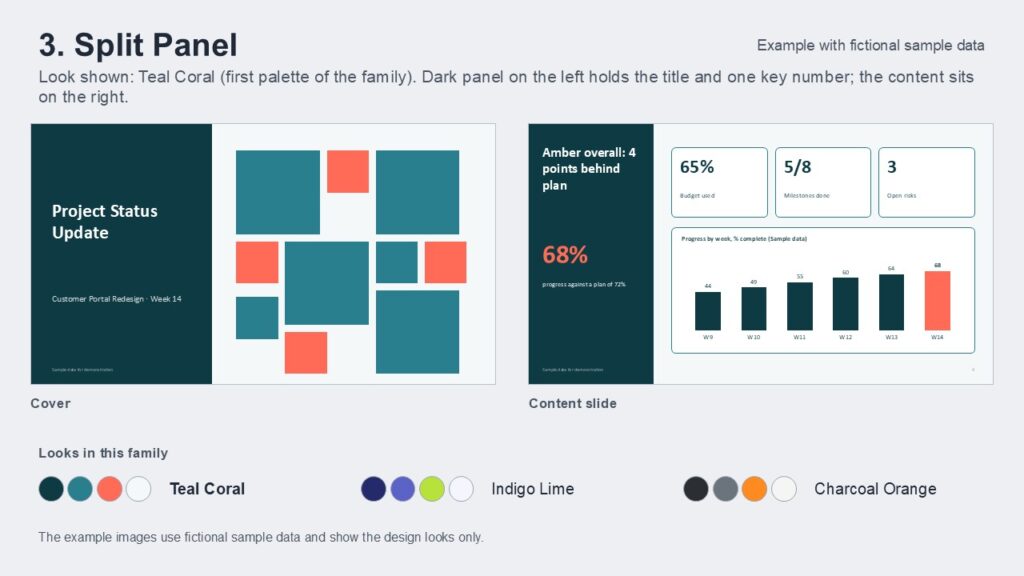
A dark panel on the left holds the title and, on content slides, one key number; the content sits on the right. Flat white cards and bars in dark and accent.
Suits: an AI project status presentation in which each slide’s one key number sits in a panel beside the content.
- Teal Coral: deep teal with coral accents
- Indigo Lime: indigo and periwinkle with lime accents
- Charcoal Orange: charcoal and grey with orange accents
4. Geometric Bold
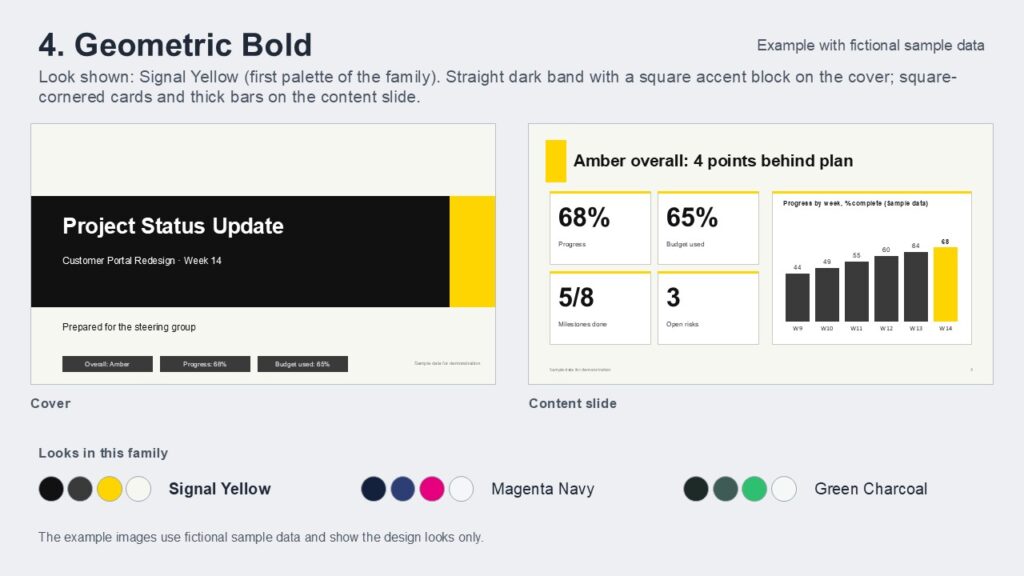
Light cover with a straight dark band holding the title and a square accent block at its end, then slides with square-cornered cards and a colored top border. Thick solid bars in charts. The closing slide is dark with a straight accent band.
Suits: an editable project status PowerPoint for team leads who want clear, square-edged blocks and thick bars.
- Signal Yellow: black and dark grey with yellow on off-white
- Magenta Navy: navy and blue with magenta
- Green Charcoal: dark green-charcoal and muted green with bright green
5. Soft Rounded
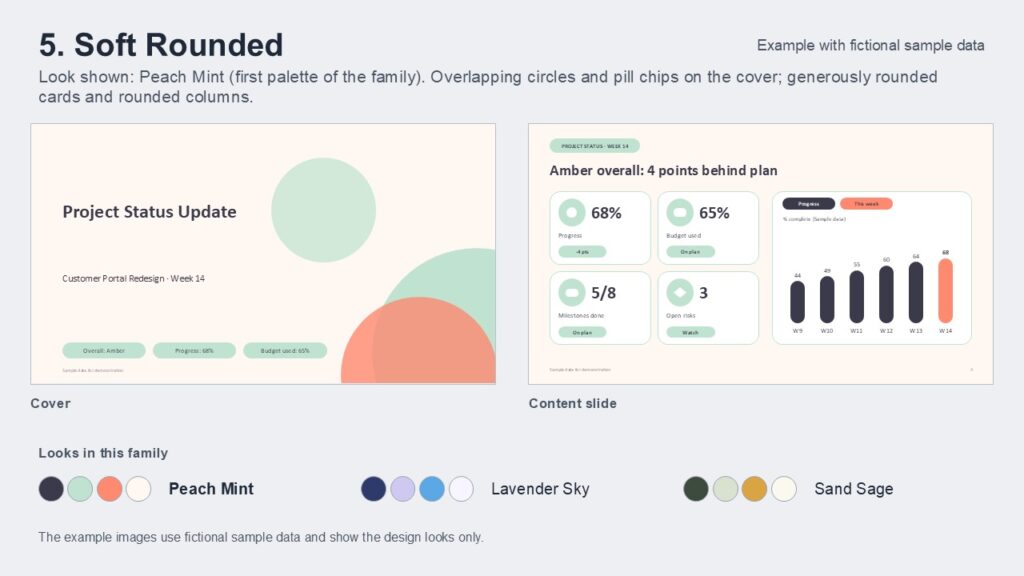
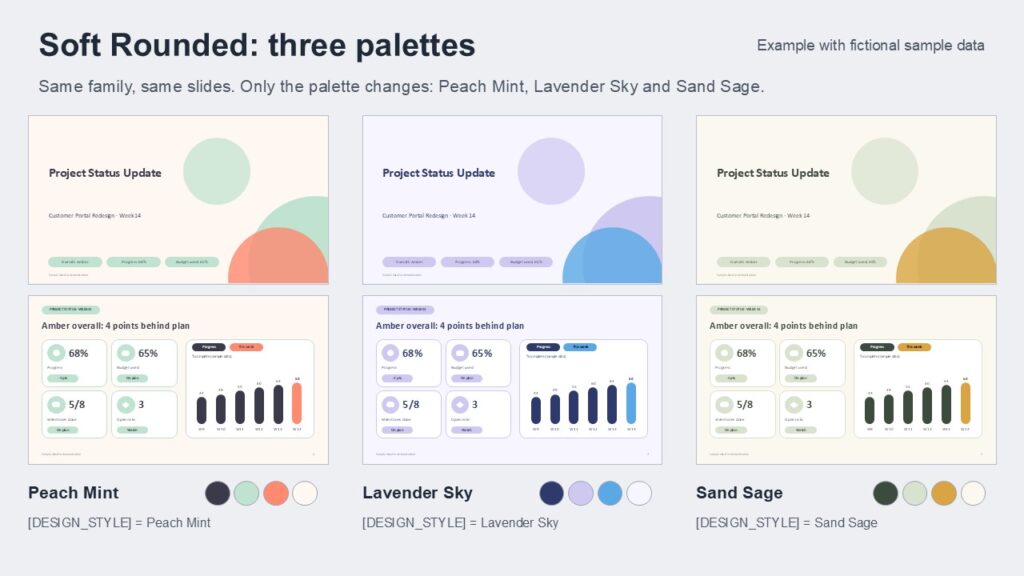
Overlapping circles on a light cover, pill-shaped chips and labels, and generously rounded cards. Rounded-looking columns in dark and accent.
Suits: a project status update deck for internal teams and trainers who prefer a friendly, rounded look.
- Peach Mint: dark slate with mint and coral-peach on warm cream
- Lavender Sky: indigo-navy and lavender with sky blue on pale lavender
- Sand Sage: dark olive and pale sage with golden yellow on cream
6. Swiss Line
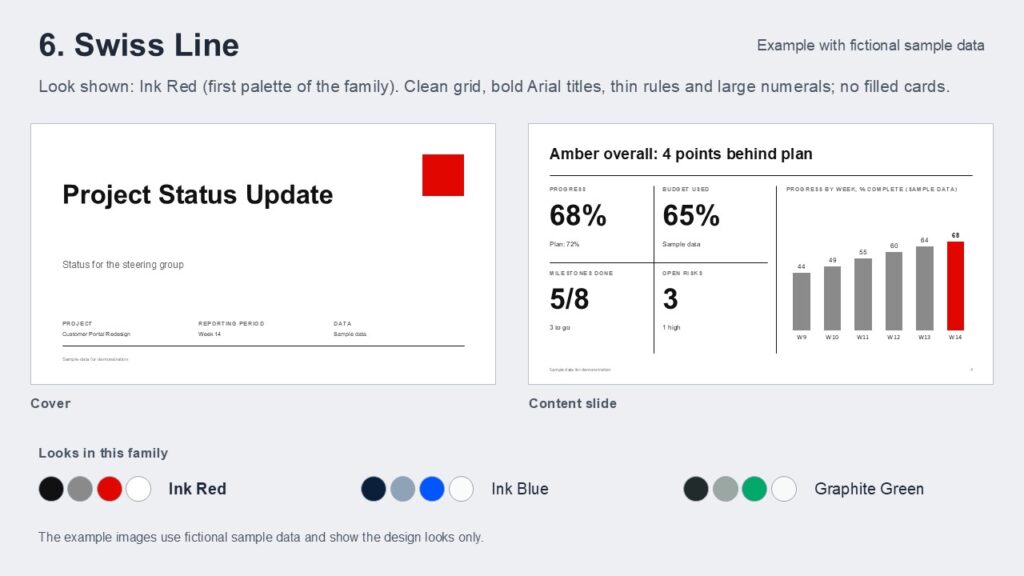
Clean grid with bold Arial titles, thin rules between blocks and large numerals, with no filled cards. Single-color bars or lines with one accent highlight.
Suits: a project progress report presentation for managers and freelancers who prefer a grid with thin rules and no filled cards.
- Ink Red: black and grey with a red accent on white
- Ink Blue: dark navy and blue-grey with a bright blue accent
- Graphite Green: graphite and grey-green with a green accent
7. Data Cockpit (default)
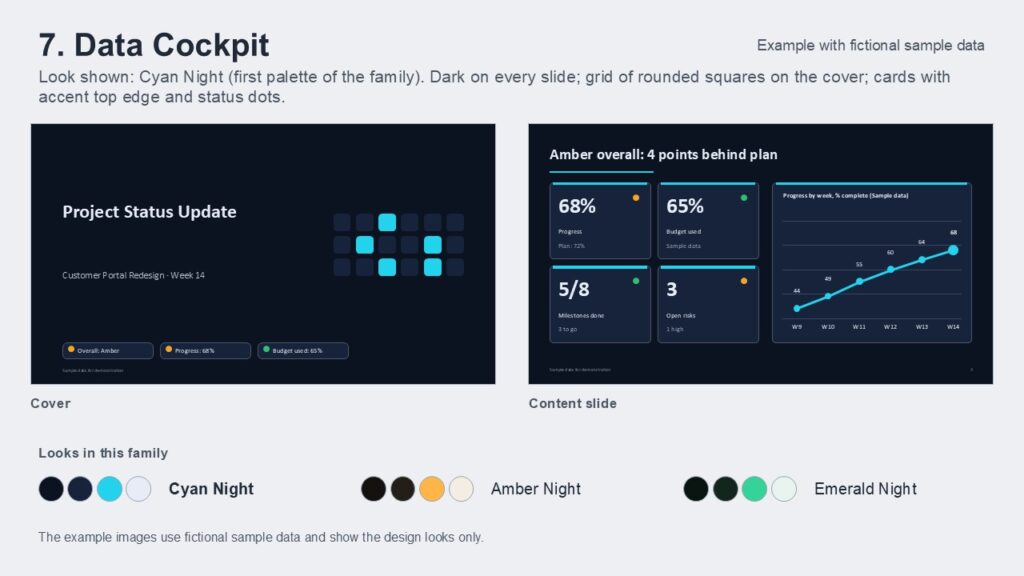
Every slide has a dark background with light text, and the cover has a grid of rounded squares. Cards are filled with an accent top edge and small green, amber or red status dots.
Suits: an AI project status presentation with status dots, for project managers who report to sponsors on a dark screen.
- Cyan Night: near-black navy with a cyan accent
- Amber Night: near-black brown with an amber accent
- Emerald Night: near-black green with an emerald accent
8. Warm Terra
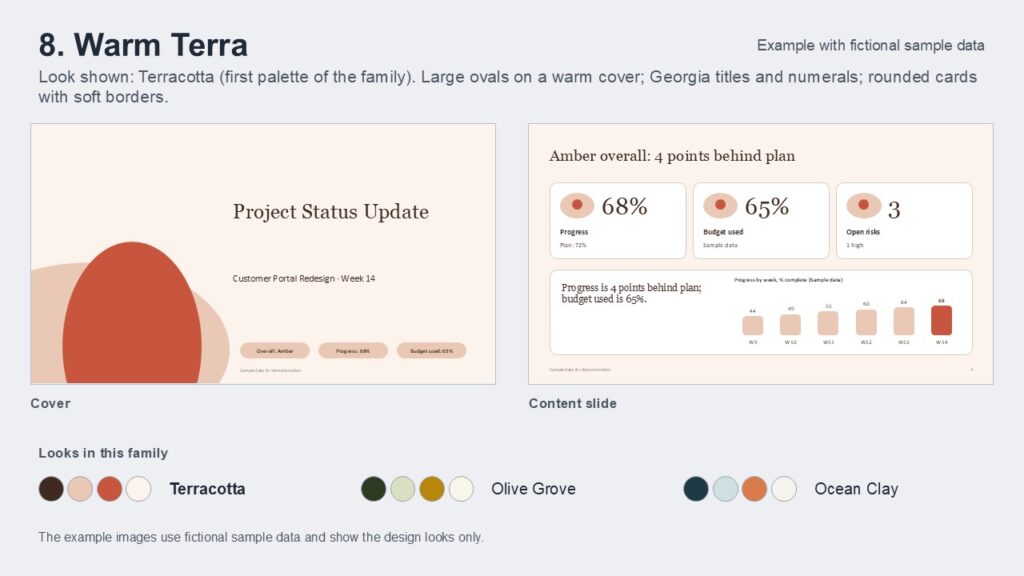
Large ovals on a warm cover, Georgia titles and numerals, and rounded cards with soft borders. Earthy columns in secondary and accent colors.
Suits: an editable project status PowerPoint for client updates that need a warmer, rounded look.
- Terracotta: dark brown and pale clay with terracotta red on warm cream
- Olive Grove: dark olive and pale olive-green with golden brown on cream
- Ocean Clay: deep teal-blue and pale blue-grey with clay orange on warm white
Quick picks
- Simple and light looks: Minimal Navy, Clean Light (Classic Boardroom), Ink Blue and Ink Red (Swiss Line).
- Dark looks: Data Cockpit (Cyan Night, Amber Night, Emerald Night) is dark on all slides. Classic Boardroom Bold Dark has a dark cover and closing with light content slides. Split Panel has a dark left panel on every content slide.
- Warm and friendly looks: Peach Mint, Lavender Sky and Sand Sage (Soft Rounded); Terracotta, Olive Grove and Ocean Clay (Warm Terra).
- Formal and editorial looks: Ink and Cream, Forest Paper and Midnight Rose (Editorial Serif); Ink Blue and Graphite Green (Swiss Line).
- Bold and energetic looks: Signal Yellow, Magenta Navy and Green Charcoal (Geometric Bold); Teal Coral, Indigo Lime and Charcoal Orange (Split Panel).
How to change the look
Find these lines in the INPUTS section of the prompt and edit them. You can use one way or combine them.
(a) A look name. Type a palette name. It selects that palette together with its own family.
[DESIGN_STYLE] = Cyan Night
Data Cockpit is a family name. Cyan Night is a look name that belongs to Data Cockpit. Palette names are unique.
(b) A family name. Type a family name to get that family with its first palette.
[DESIGN_STYLE] = Warm Terra
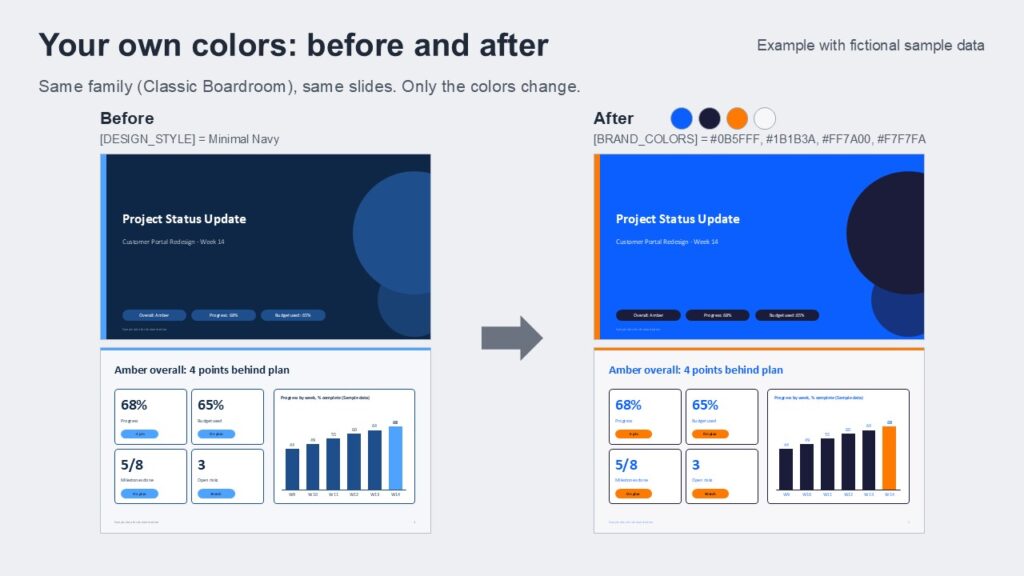
(c) Your own colors. Write 2 to 4 HEX colors in this order: main color, secondary color, accent color, light background color. The family’s fonts and shapes stay, text contrast is kept at 4.5:1 or better, and missing colors are completed from the chosen palette.
[BRAND_COLORS] = #0B5FFF, #1B1B3A, #FF7A00, #F7F7FA
(d) Short wishes. Write small style wishes such as warmer, bolder or more minimal.
[STYLE_NOTES] = warmer
A project progress report presentation that is easier to prepare
Before and after: a project progress report presentation
Before: you start with a blank slide and write notes at the end. After: you add your project facts and open an editable project status PowerPoint designed to include a status summary, progress, milestones, budget, issues and a decision. A project progress report presentation in a fixed order is designed to help readers find the key facts.
Who it is for
Who can use this project status update deck prompt
Project managers, team leads, consultants and freelancers who prepare a project progress report presentation for a sponsor, a steering committee or a client. The prompt follows the rules of my book, Mastering PowerPoint 365 for Business Presentations with AI: one idea per slide, short bullets and fact-checking all AI output.
Who it is not for
It is not for people who need a company logo and master slides built in. This AI project status presentation prompt does not connect to project software.
What is in the download
- A prompt file (.txt) that builds an editable project status PowerPoint
- A usage guide (PDF)
- A sample deck file (PPTX)
For more ideas, see Advanced PowerPoint Prompts on YouTube.
Output: designed to give a downloadable .pptx file in AI tools that can create files; otherwise the slide text to paste into PowerPoint
Before you buy
What I tested: On 13 November 2026 I ran this prompt (PP007 version v1.0) in two places:
- Claude, Free plan, with file creation turned on: it built a downloadable .pptx file.
- Microsoft Copilot inside the Microsoft 365 PowerPoint app, using an account with paid Copilot: it built the deck inside PowerPoint. An account without Copilot inside PowerPoint (for example, a family member on a shared plan) was not tested and may not have this feature.
These are my own test results on one date. AI results change from run to run, and tools and plans can change without notice. They are not a guarantee.
Other AI tools (for example ChatGPT, Gemini or DeepSeek) were not tested. Some tools cannot create PowerPoint files from a prompt, or can only do it on certain plans, so please check your tool’s limits under the plan you actually have. If your tool cannot create files, the prompt is designed to give you the slide text instead (see “What if your AI tool cannot create files?” below). I do not promise a .pptx file in any tool not listed above.
Where this page describes what the prompt or the tool does, it describes how the prompt is designed to work in the tools I tested. Other tools, plans and settings can behave differently.
What if your AI tool cannot create files?
If your AI tool cannot create files, the prompt is designed to say so and give you the slide text instead. You can (1) try a tool that can create files, (2) check whether your plan offers file creation and whether it is turned on, or (3) paste the slide text into PowerPoint using Outline View.
Example: a status slide with sample data
Example (fictional sample data, not a real project): in demo mode, this AI project status presentation prompt is designed to build a status slide for a project progress report presentation, with an overall status of Amber, progress of 68 percent against a plan of 72 percent, and budget used of 65 percent. Every number is labeled sample data.
Notes on using AI for your reports
Why an AI project status presentation still needs your check
- AI can make mistakes. An AI project status presentation can contain wrong figures, so check every figure before you present.
- Results vary by AI tool and inputs, and plans and tools can change without notice, so check the limits of your own plan.
- Never paste confidential data into an AI tool, and remove it from the finished deck before you share.
Claude, Microsoft, Microsoft 365, Copilot, PowerPoint, Gemini, ChatGPT and DeepSeek are trademarks or names of their respective owners. This product is independent and is not affiliated with, endorsed by, or sponsored by any of them. They are named only to describe where the prompt was or was not tested. This product does not include access to, or a subscription for, any third-party AI platform or software. I may update the prompt, but I do not promise that it will keep working with future versions of third-party tools.
Ready to build your project status update deck? Browse the shop for more PowerPoint prompts.
Related products
-
Sale!
Editable Thesis Defense Deck Builder
Original price was: $24.$19Current price is: $19. Add to cart -
Sale!
Product Launch Deck Builder | Full Deck in Minutes
Original price was: $24.$19Current price is: $19. Add to cart -
Sale!
Board Paper Deck Builder | Full Deck in 3 Minutes
Original price was: $24.$19Current price is: $19. Add to cart -
Sale!
Editable Quarterly Business Review (QBR) Deck Builder | Up to 30X Faster
Original price was: $24.$19Current price is: $19. Add to cart
Reviews
There are no reviews yet.